
11 apps that may be recording you—and how to stop them
Your phone may know more about your life than your nosy neighbor, and at least the neighbor has the decency to pretend they were watering plants.
Many popular apps ask for your microphone, camera, location, contacts, photos, and activity data, and most of us tap “Allow” because we want the app to work right now, not after a legal seminar.
Pew Research Center found that 56% of Americans often click “agree” without reading privacy policies, and 61% think those policies fail to clearly explain how companies use data. So yes, most people basically sign a tiny digital contract with a shrug.
Before we get dramatic, let’s be fair. Most apps do not secretly record every breath you take like a villain in a cheap spy movie.
They usually record, listen, film, or track when you give permission, start a feature, join a call, upload a video, activate a smart device, or enable voice commands.
Still, permission creep becomes a real privacy problem when apps retain access long after you stop using the feature. Now let’s talk about the apps that deserve your side eye.
Facebook Can Access Your Camera, Mic, Location, and Contacts When You Let It

Facebook asks for permissions that make sense for posting photos, going live, recording stories, using voice features, finding friends, and tagging locations. That does not mean you should hand out every permission as if you were giving a spare house key to a raccoon.
Meta’s own Privacy Center tells users they can manage privacy choices across Facebook, Instagram, Messenger, and other Meta products, which matters because Meta’s apps often share account-level settings through Accounts Center.
The main privacy issue with Facebook comes from how much the app connects your actions. You may use it to post one birthday photo, but the app may also request permissions for the camera, microphone, contacts, local network, location, and tracking.
Ever opened Facebook Marketplace once and wondered why it seemed to know your entire weekend mood? Same energy.
How to remove or restrict Facebook
On iPhone, go to Settings > Privacy & Security > Microphone and turn Facebook off. Repeat this under Camera, Photos, Contacts, Location Services, and Tracking. You can also scroll to Facebook in Settings and cut permissions from there.
On Android, go to Settings > Apps > Facebook > Permissions. Change microphone, camera, location, contacts, and nearby devices to Don’t allow or Ask every time.
Instagram Records Through Reels, Stories, Live, Voice Notes, and Camera Features

Instagram looks harmless because it wears filters and lip gloss, but it still asks for serious access. The app needs your camera and microphone for Stories, Reels, Live, video calls, voice notes, and content uploads.
The app’s help page lets users manage device permissions, and Meta’s broader privacy controls apply across Instagram and other Meta products.
The risk does not come from posting one coffee photo. The risk comes from letting Instagram keep camera, mic, photo library, contacts, location, and tracking permissions forever. Why should an app need your microphone when you only scroll memes at midnight? Exactly.
How to remove or restrict Instagram
On iPhone, open Settings > Instagram and turn off Microphone, Camera, Contacts, Photos, Location, and Tracking as needed. You can also go through Privacy & Security and review each permission category.
On Android, open Settings > Apps > Instagram > Permissions. Set the microphone and camera to ask every time if you still make Reels occasionally. Set location to Don’t allow unless you genuinely use location stickers or local discovery.
Inside Instagram, go to Profile > Menu > Your app and media > Device permissions and review access there too. FYI, turning off microphone access may break voice notes and video recording inside the app, but your privacy gets the point.
TikTok Uses Your Camera, Mic, Uploads, Audio, and Behavior to Power the Feed

TikTok lives on video, sound, recommendations, and user behavior. That means it can ask for camera and microphone access when you create videos, go live, upload clips, use effects, or interact with audio tools.
TikTok’s privacy materials describe how the platform processes user content, such as videos, images, and audio, and external privacy reporting has raised concerns about the platform’s data-collection practices in recent years.
This app does not need your microphone when you only watch clips. It does not need contacts if you do not care about finding every cousin, coworker, and former classmate.
The app works best with more data, of course, because algorithms love data the way toddlers love sticky fingers.
How to remove or restrict TikTok
On iPhone, go to Settings > TikTok. Turn off Microphone, Camera, Contacts, Photos, Location, Bluetooth, Local Network, and Tracking unless you use those features.
On Android, go to Settings > Apps > TikTok > Permissions. Change microphone, camera, contacts, and location to Don’t allow or Ask every time.
Snapchat Records Camera, Voice, Face, Hands, Location, and Snap Map Data

Snapchat literally opens to the camera, so yes, this one belongs on the list. Snap says some features use information about your face, hands, and voice to make features like Lenses work, and that data may count as biometric information under some laws.
Snap also says precise location sharing stays off by default unless users opt in, especially for location features like Snap Map.
Snapchat makes recording feel casual. You tap, film, send, forget. But screenshots, Memories, Lenses, Spotlight, Snap Map, and voice features can create more data than you expect.
Ever sent one goofy video and then realized your location sticker told on you? Classic app betrayal.
How to remove or restrict Snapchat
On iPhone, go to Settings > Snapchat and turn off Microphone, Camera, Location, Contacts, Photos, and Tracking. Choose Selected Photos if you only want Snapchat to access a few images.
On Android, go to Settings > Apps > Snapchat > Permissions. Set the camera and microphone to Ask every time if your phone supports it. Set location to Don’t allow or use approximate location.
Inside Snapchat, check:
- Snap Map location sharing
- Ghost Mode
- Contact syncing
- Memories backup
- Ad preferences
- Lens and camera permissions
If you mainly use Snapchat for streaks you no longer enjoy, deleting it may improve your privacy and your emotional cholesterol.
WhatsApp Records Voice Notes, Calls, Videos, and Camera Content When You Use Those Features
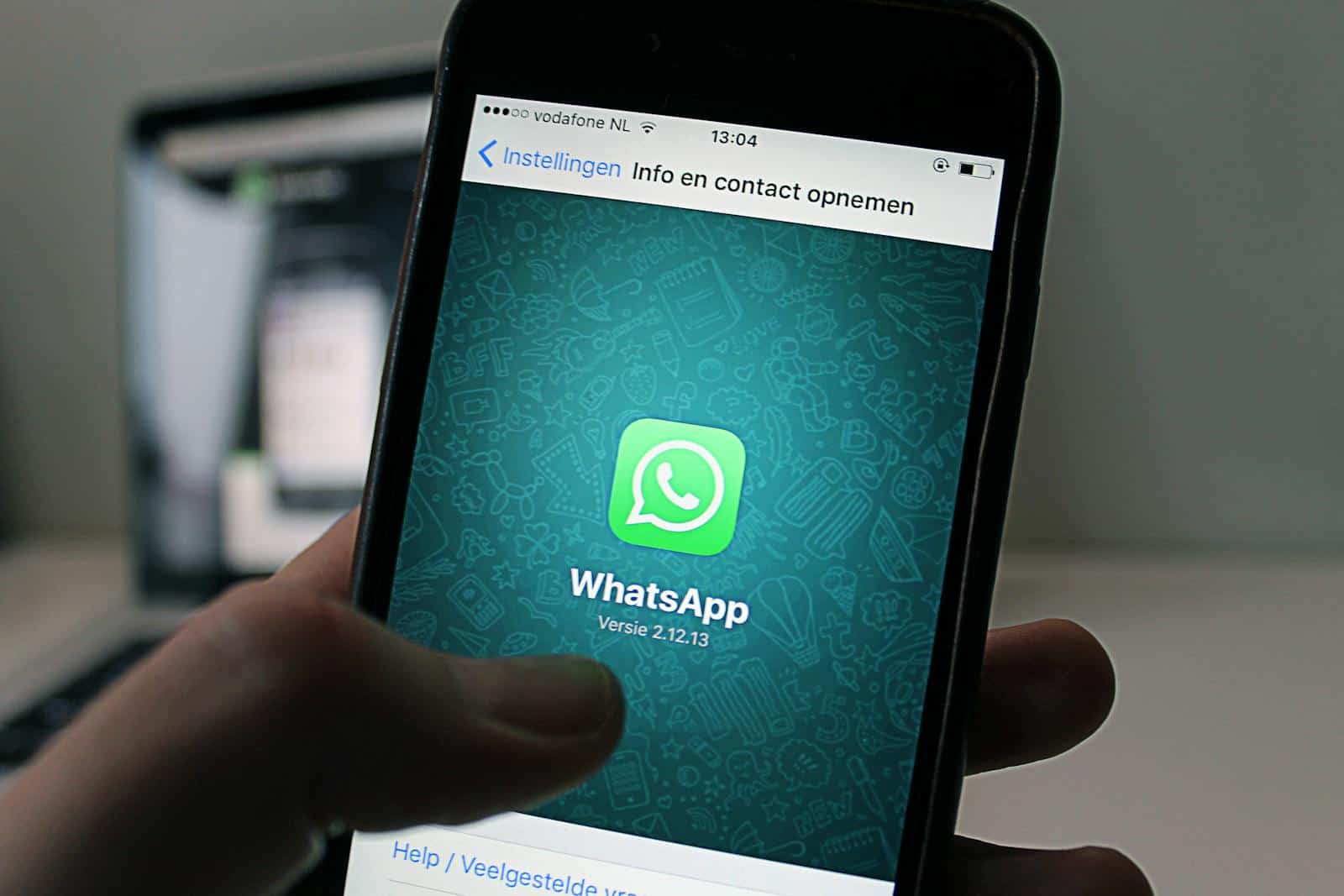
WhatsApp needs microphone and camera access for voice notes, calls, video calls, status videos, and photo sharing. WhatsApp’s help page tells users to allow camera access only while using the app on Android, offering a practical middle ground between full access and broken features.
The app has strong privacy benefits for messages, but permissions still matter. A secure chat app can still use your microphone during calls and voice notes because, well, physics refuses to cooperate otherwise.
The better question is this: do you need WhatsApp to access your camera and mic all the time, or only when you actually call someone?
How to remove or restrict WhatsApp
On iPhone, go to Settings > WhatsApp and turn off Microphone, Camera, Contacts, Photos, and Location if you do not need them. You can also review permissions under Settings > Privacy & Security.
On Android, go to Settings > Apps > WhatsApp > Permissions. Set the microphone and camera to Allow only while using the app or Ask every time. Keep contacts off if you do not want WhatsApp to sync your address book.
Inside WhatsApp, review:
- Live Location sharing
- Linked devices
- Media auto download
- Backups
- Status privacy
Backups deserve special attention. If you back up chats to cloud storage, your chat privacy depends partly on your backup settings, not just WhatsApp itself.
Messenger Records Audio, Video Calls, Voice Clips, and Camera Effects
Messenger can record your voice and video because that’s basically half the app. It uses a microphone and camera access for calls, voice notes, selfie videos, effects, rooms, and media sharing.
Meta’s Facebook help pages point users toward device permission management for Meta apps, and Meta’s Privacy Center covers privacy controls across Messenger, Facebook, Instagram, and related services.
Messenger often catches people because they forget it exists separately from Facebook. You may delete Facebook and keep Messenger, then wonder why Meta still has microphone and contact access on your phone. Sneaky? Maybe. Convenient? Also maybe. Annoying? Absolutely.
How to remove or restrict Messenger
On iPhone, go to Settings > Messenger and turn off Microphone, Camera, Contacts, Photos, Bluetooth, Local Network, and Tracking where available. You can also check Settings > Privacy & Security > Microphone and turn Messenger off there.
On Android, go to Settings > Apps > Messenger > Permissions. Set the microphone and camera to ask every time if you still use calls. Deny contacts if you do not want contact syncing.
Inside Messenger, check:
- Upload contacts
- Active status
- Message requests
- Story privacy
- Calling permissions
If you only keep Messenger for two people, consider moving those chats to a less permission-heavy option. IMO, the best app is the one that does the job without acting like it needs your entire phone.
Zoom Records Meetings, Audio, Video, Screens, Chats, and Transcripts When Hosts Enable It
Zoom earns a spot because people join calls half awake, click through prompts, and forget who controls the meeting.
It says its privacy alerts explain who can see, save, or share content during sessions, especially when account owners, hosts, recordings, apps, or meeting features are involved.
Zoom also says it does not use customer content, such as audio, video, chat, screen sharing, and attachments, to train Zoom or third-party AI models.
The real risk comes from meeting recordings, cloud storage, transcripts, AI summaries, and workplace admin controls. You may think you’re on a casual call, but someone records your face, voice, chat messages, and screen share. Fun little nightmare, right?
How to remove or restrict Zoom
On iPhone, go to Settings > Zoom and turn off Microphone, Camera, Contacts, Calendar, Photos, and Local Network unless you need them.
On Android, go to Settings > Apps > Zoom > Permissions. Set the microphone and camera to Ask every time or Allow only while using the app.
Before any Zoom call, check:
- Recording indicator
- AI Companion or summary notice
- Host permissions
- Chat visibility
- Screen sharing settings
- Cloud recording notice
If someone records a meeting, ask how they will store, share, and delete it. You deserve that answer before your face becomes “Meeting_Final_FINAL_v3.mp4.”
Microsoft Teams Records Meetings, Calls, Transcripts, and Workplace Activity

Microsoft Teams can access your microphone and camera for calls, meetings, voice messages, and screen sharing.
Their developer documentation says that Teams users can manage device permissions in Teams settings by going to Settings > App permissions and choosing Allow or Deny for specific apps.
Microsoft’s support pages also point users to device privacy settings for camera access. Teams adds one extra layer: your employer or school may control parts of the environment.
A work meeting can include recordings, transcriptions, attendance data, chat logs, shared files, and administrative policies. So yes, your mic matters, but your workplace settings matter too.
How to remove or restrict Teams
On iPhone, go to Settings > Teams and turn off Microphone, Camera, Contacts, Photos, Local Network, Bluetooth, and Location if you do not need them.
On Android, go to Settings > Apps > Teams > Permissions. Change the camera and microphone to ask every time when possible.
Inside Teams, review:
- Settings > App permissions
- Meeting recording notices
- Transcript settings
- Connected apps
- Calendar and contact access
- Notification previews
For work calls, keep a simple habit: join muted, turn on camera only when needed, and avoid sharing your whole screen. Nobody needs to see your 37 open tabs and that one suspiciously named shopping cart.
Discord Records Voice and Video During Calls, and It Handles Sensitive Community Data

Discord started as a gamer hangout, but it now handles communities, work groups, creators, study rooms, and private calls. Discord’s privacy policy explains how it collects, uses, stores, protects, and shares personal information through its services.
It also published support guidance for end-to-end encryption for audio and video, including how users can verify encrypted calls inside the app. Discord’s risk depends on how you use it.
Voice channels, video calls, screen sharing, direct messages, bots, third-party integrations, and community servers all create privacy decisions. One messy server can turn into a data buffet if you grant too much access to bots and connected apps.
How to remove or restrict Discord
On iPhone, go to Settings > Discord and turn off Microphone, Camera, Photos, Contacts, and Local Network unless you use those features.
On Android, go to Settings > Apps > Discord > Permissions. Set the microphone and camera to Ask every time or Allow only while using the app.
Inside Discord, check:
- Authorized apps
- Connected accounts
- Voice and video settings
- Server privacy settings
- Direct message filters
- Data request and deletion tools
If you join random servers, review bots before interacting with them. A funny bot can still request permissions you would never give to a human with a username like “CryptoDragon9000.”
Google App and Google Assistant Can Save Voice Activity When You Allow It

The Google app and Google Assistant can process voice searches, voice commands, dictation, and Assistant requests. Google’s support page says users can find or delete audio recordings in Web & App Activity, and items with the audio icon include recordings.
Google also lets users delete Assistant activity from their account. This one feels personal because voice assistants live close to your habits. You ask about weather, reminders, routes, recipes, random symptoms, and songs stuck in your head.
Then one day, you realize your “quick question” history reads like a diary written by a sleep-deprived raccoon.
How to remove or restrict Google Assistant
On Android, go to Settings > Apps > Google > Permissions and review Microphone, Location, Contacts, Calendar, Phone, and Nearby devices.
On iPhone, go to Settings > Google and turn off Microphone, Location, Contacts, and Bluetooth where available.
To delete voice recordings:
- Open your Google Account
- Go to Data & privacy
- Select Web & App Activity
- Tap Manage activity
- Look for items with the audio icon
- Delete individual items or delete activity by date
You can also turn off audio recording storage in Google activity settings. The Assistant may still work, but you reduce the stored voice history.
Amazon Alexa Records Voice Requests, and the Alexa App Controls That History
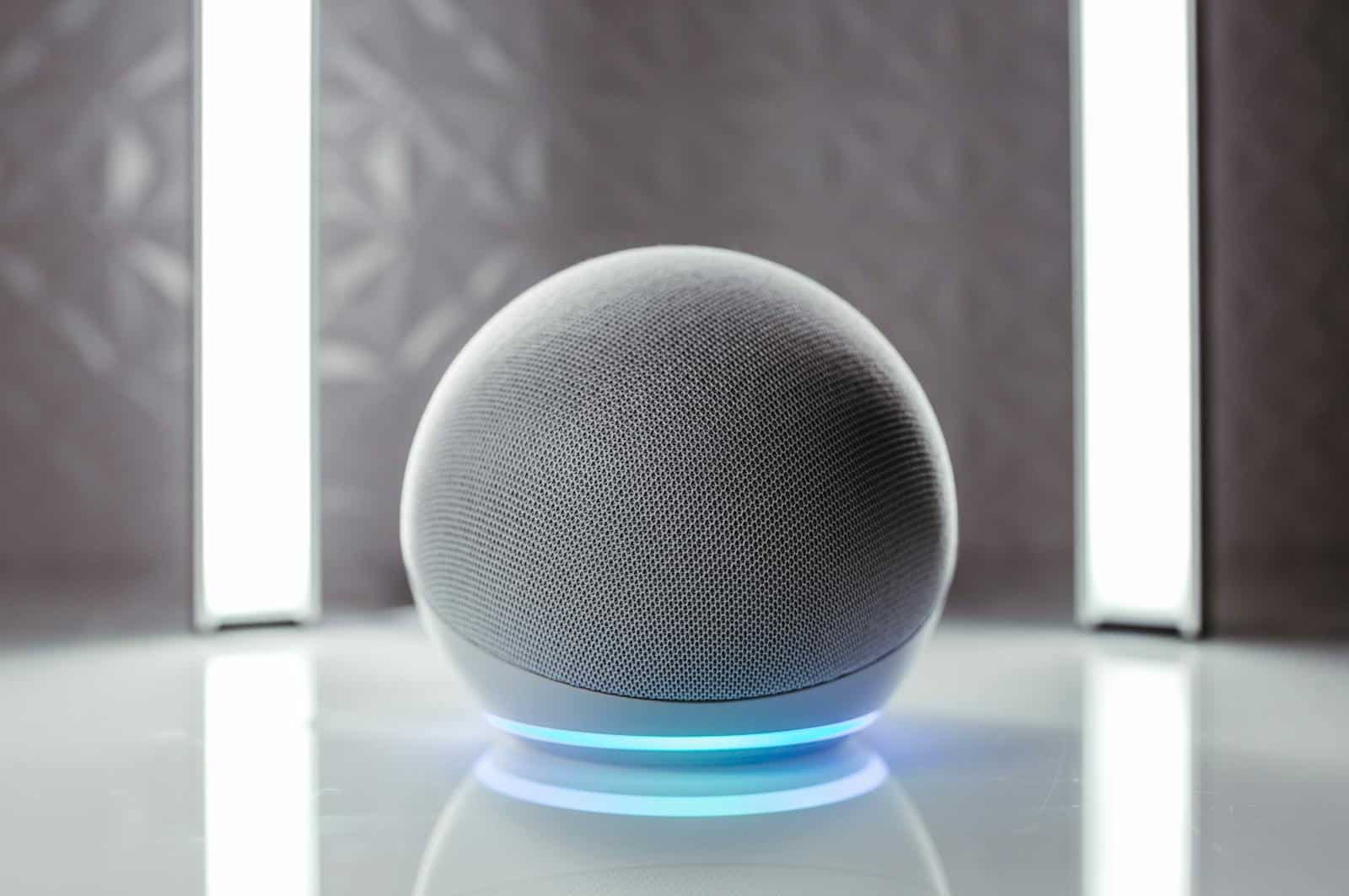
Alexa devices listen for a wake word, then process voice requests. Amazon’s help pages explain how users can review voice history, delete Alexa voice recordings and transcripts automatically, and use Alexa Privacy settings inside the Alexa app.
Alexa differs from phone apps because your Echo sits in your home like a polite little hockey puck with ears. It does not need to “spy” to create privacy concerns.
It just needs accidental wake words, saved requests, smart home logs, voice profiles, and family members who shout commands from across the room.
How to remove or restrict Alexa
Open the Alexa app and go to More > Alexa Privacy. Review your voice history, delete recordings, and set recordings to auto-delete.
Use these settings:
- Review Voice History
- Manage Your Alexa Data
- Choose how long to save recordings
- Do not save recordings, where available
- Delete recordings by voice, if you enable that option
- Smart home device history
You can also press the physical microphone mute button on Echo devices. That tiny red light may look dramatic, but it gives you real peace when you want the room fully offline. 🙂
Ring Records Video, Audio, Motion Events, and Doorbell Activity Around Your Home
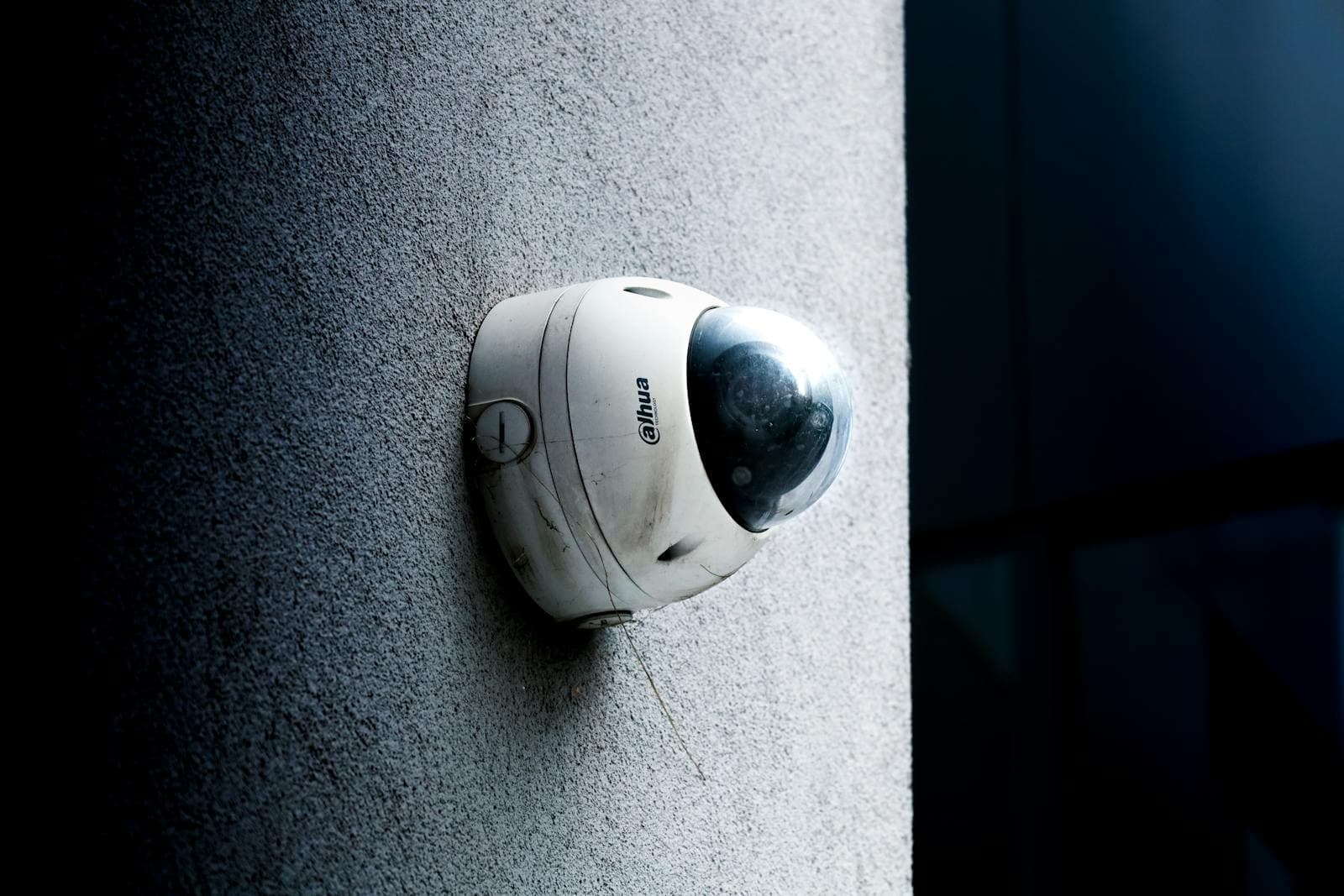
The ring does not just affect you. It can record visitors, delivery workers, neighbors, and random people walking by your home.
Ring’s support pages explain how users can delete videos through the Ring app and warn that deleting Ring videos remains permanent and irreversible. Ring also offers privacy features such as Privacy Zones, which let users block parts of the camera view.
The privacy issue here feels bigger because doorbell cameras sit outside private homes and point into shared spaces. A phone app records when you use it.
A security camera may continuously capture motion, depending on its settings. That makes Ring useful, but also a little socially awkward.
How to remove or restrict Ring
Open the Ring app and review:
- Motion Detection
- Motion Zones
- Audio Streaming and Recording
- Privacy Zones
- Video storage
- Shared users
- Neighbors settings
- Linked devices
To delete videos, open Ring, tap History, use the edit or pencil icon, select events, then tap Delete. Ring says deletion stays permanent, so review before tapping like a privacy warrior with caffeine.
On your phone, also revoke app permissions you do not need. Go to the settings on your iPhone or Android device and turn off location, microphone, camera, Bluetooth, and notifications where possible.
Conclusion

Your phone does not need to become a panic box. Most recording risk comes from apps you allowed months ago, features you forgot, smart devices you never reviewed, and privacy settings hidden behind menus with names only a software engineer could love.
Start with the big three permissions: microphone, camera, and location. Then check contacts, photos, tracking, connected accounts, cloud recordings, voice history, and meeting transcripts. Delete what you do not use.
Restrict what you still need. Question any app that wants full access just to show you memes, maps, or notifications.
The goal is not paranoia. The goal is control. Your apps can stay useful without turning your phone into a tiny glass snitch.
Disclaimer: This list is solely the author’s opinion based on research and publicly available information. It is not intended to be professional advice.
Like our content? Be sure to follow us
You may want to read:

- 12 ways smartphone overuse is impacting relationships, health, and society
- AI chatbots are becoming the new matchmakers for people seeking love
- Consciousness explained: 12 new theories you haven’t heard